抽空汉化了一下AI Content Writing Assistant,部分内容使用Poedit自动翻译,另一部分内容使用Claude帮助翻译,并没有做精细的调整,但足够日常使用了。


将两个文件上传到:wordpress/wp-content/languages/plugins路径中即可实现汉化了。

汉化文件在这:
链接:https://pan.baidu.com/s/19TV97aROFus9yAWaOg4paA
提取码:4c55
光锥之内皆命运
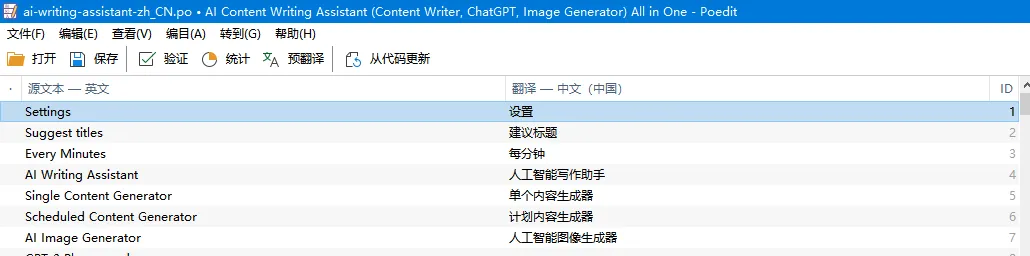
抽空汉化了一下AI Content Writing Assistant,部分内容使用Poedit自动翻译,另一部分内容使用Claude帮助翻译,并没有做精细的调整,但足够日常使用了。
将两个文件上传到:wordpress/wp-content/languages/plugins路径中即可实现汉化了。
汉化文件在这:
链接:https://pan.baidu.com/s/19TV97aROFus9yAWaOg4paA
提取码:4c55

Deprecated: Return type of moodle_recordset::rewind() should either be compatible with Iterator::rewind(): void, or the #[\ReturnTypeWillChange] attribute should be used to temporarily suppress the notice in /www/wwwroot/exercise.ink/moodle/lib/dml/moodle_recordset.php on line 61
Fatal error: Type of xml_format_exception::$line must be int (as in class Exception) in /www/wwwroot/exercise.ink/moodle/lib/xmlize.php on line 42在官方社区中找到一个相同错误的内容:Installing and upgrading help.Deprecated error in 3.11 with latest Apache install


That particular issue is MDL-73424 (part of the ongoing PHP8.1 epic at MDL-73016)
Solution is to not use those versions of PHP, and stick to supported versions only
跟帖回复提到Moodle在PHP8.1版本中会遇到问题,只能降到PHP7.4下使用。

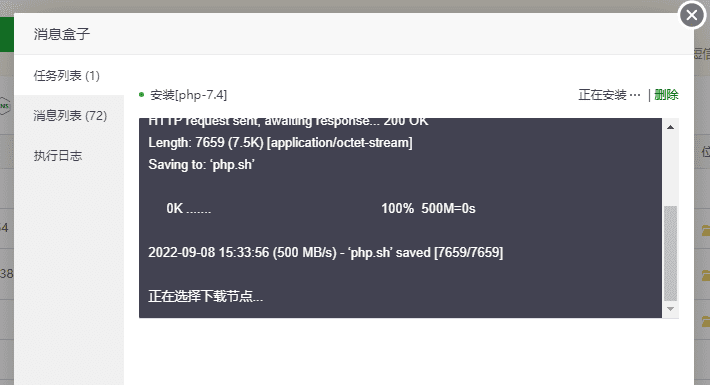
好在用的是宝塔面板,安装和切换PHP版本都很方便。

切换PHP7.4后问题解决。
但这应该不是终结,依稀记得Moodle对服务器和数据库有着各种各样的要求。
果然,还是遇到了每次都会复现的问题——无法建立moodledata文件夹:
不过好在这并不是一个难以解决的问题,程序无法建立这个文件夹,就手动创建一个,并且权限修改为777


宝塔面板还有在这里把放跨站攻击关掉。
之后,面临下一个问题安装PHP cURL并手动上传语言包。

接下来,连接数据库:

正式安装:
遇到了意料之中的几个问题:


fileinfo扩展这两个是主要问题,如果不解决掉Moodle是无法顺利安装下去的。
其他一些小问题也要一起解决,否则也会影响运行效率。
不过这个主机上升级数据库略繁琐,今天先到这。

在Microsoft Azure申请了12个月200美元的试用权限,准备把本站由现在腾讯云的硅谷主机迁移到Microsoft Azure的韩国主机上。

之前在腾讯云上使用的是CentOS 7.9.2009 x86_64,但很久以前,在树莓派和虚拟机里比较常用Ubuntu,所以本次使用Ubuntu+宝塔面板方式,简化环境配置过程:
wget -O install.sh http://download.bt.cn/install/install-ubuntu_6.0.sh && sudo bash install.sh ed8484bec
建议初次尝试的小伙伴还是首选CentOS,稳定性和兼容性会更好。

安装好宝塔后,第一步就给了我一个下马威,看情况应该是服务器没有开放宝塔面板的8888端口导致的。

在虚拟机的网络设置里,打开8888端口

刷新页面,出现了熟悉的宝塔面板登录界面。

一键安装LAMP环境
可以趁安装的时间去修改一下宝塔面板初始用户名和密码。

一定要记得把安全入口改掉。默认的太复杂不方便记忆。
 AI 助手